DAO Workbook · DAO Lead
Record votes
Updated 27 Nov 2026
This guide helps the DAO Lead keep the DAO's votes: proposals on the Kambria DAOs Framework come in by themselves, and you add the report details.
Steps
- Open your DAO and the Voting tab (or ☰ → DAO Lead → Voting).
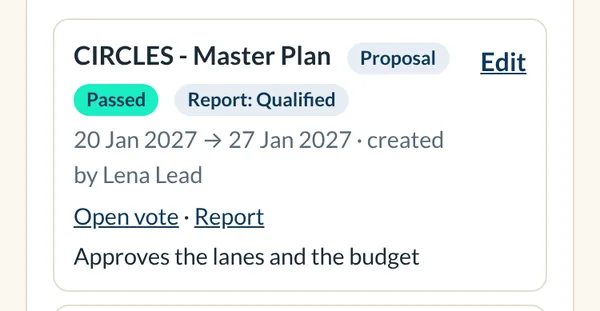
- Proposals made on the Kambria DAOs Framework appear in Votes by themselves, tagged From KDF, with their status. To add the report details, tap Edit on the vote, fill in Corresponding proposal, Report link, Report qualified? and Notes, and tap Save changes.
- To record a vote by hand (for example an older vote), go to Votes, type the Voting title and choose the Voting type: Proposal, Payment, Mint GT or Burn GT.
- Choose the Status: Created, Activated, Passed or Closed.
- Fill in Created, Starts and Ends, and paste the Voting link.
- If they apply, add the Corresponding proposal, Payment tx link, Report link and Report qualified? (Pending, Yes or No). Add Notes if useful.
- Tap Add. The vote shows in the list, latest first (by the Created date).
- When the vote moves on, tap Edit, change the Status or add links, and tap Save changes.
Good to know
- Every vote the DAO holds on the Kambria DAOs Framework is listed: proposals, payments for operating costs and GT changes. You don't type them.
- On a vote From KDF, the title, type, dates, link and status follow the proposal. The form says This vote comes from KDF: its title, type, dates, link and status follow the proposal.
- The status follows the proposal: Created before voting starts, Activated while members vote, Passed when it passed, Closed when it was cancelled or did not pass.
- Open vote opens the proposal on the Kambria DAOs Framework. Open the DAO’s proposals on the Kambria DAOs Framework opens the list of them all.
- Paid tasks are settled through the KDF, not recorded here.
- Votes are never deleted. Change the status or add a note instead.
- The app records who created each vote. Everyone in the DAO can read the list.
- The vote link you record for a paid task goes in the Pay-Per-Task Scheme, in Approved by vote (link).
If something goes wrong
- Voting title: Required.
- The vote ends after it starts. Check the Starts and Ends dates.
- Add the link to the vote, starting with https:// The Voting link is not a web link.
- Add a link, starting with https:// The Payment tx link or the Report link is not a web link.
- You can’t change this. Only the DAO Lead records votes.
- This vote comes from KDF: its title, type, dates, link and status follow the proposal. You tried to change a field that follows the proposal.