
Organizers
Set the revenue split and receiving accounts
Updated 26 Nov 2026
This guide helps the Organizer change how revenue is divided, who receives two of the parts, and how money is paid out, so sharing follows what the DAO agreed.
Before you start
- The DAO agreed the new numbers. The split is the DAO's decision, not the Organizer's alone.
- Your account holds the Organizer role in this DAO.
Steps
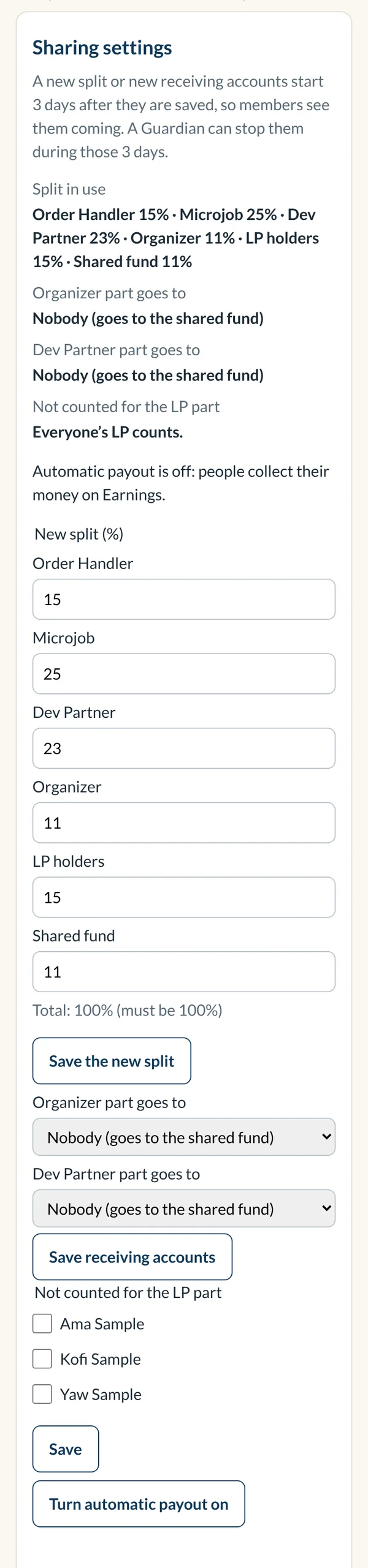
- Open the ☰ menu. Under Organizer, tap Revenue sharing. Find Sharing settings.
- Read Split in use, Receiving accounts and Not counted for the LP part.
- To change the split, fill in New split (%) for Order Handler, Microjob, Dev Partner, Organizer, LP holders and Shared fund. Check that Total shows 100%. Tap Save the new split and confirm with your screen lock.
- To choose who gets a part, pick a member in Organizer part goes to and Dev Partner part goes to, or Nobody (goes to the shared fund). Tap Save receiving accounts.
- To leave someone's LP out of the LP part, tick their name under Not counted for the LP part and tap Save.
- To change payouts, tap Turn automatic payout on or Turn automatic payout off.
- Wait for Done. each time.
Good to know
- A new split and new receiving accounts start 3 days after you save them. The card shows New split from or New receiving accounts from with the date. During those 3 days a Guardian can tap Stop the waiting change (Guardian); this stops both waiting changes.
- Cycles already sent keep the split they were sent with. A cycle can only use the split in use.
- Not counted for the LP part and automatic payout change at once.
- One switch covers both revenue sharing and paid tasks. When it is on, people get their money without doing anything; when off, they collect it on Earnings.
- If a part has nobody to receive it, that money goes to the shared fund.
If something goes wrong
- The split must add up to 100%. Fix the numbers until Total shows 100%.
- That is already the split in use. Nothing to change.
- That didn’t work. Please try again. Reload and try once more; if it keeps happening, tell Kambria Ops.
- Too many actions today. Please try again tomorrow.