
Order Handlers
Add co-handlers to an order
Updated 26 Nov 2026
This guide helps Order Handlers name the members who work with them on an order, so each of them gets a fair part of the Order Handler share.
Before you start
- You made the order, or you are the DAO's Organizer.
- The people you add are approved members of the DAO. Only approved members are listed.
- The order is not Done yet. After that, who worked on it can't change.
Steps
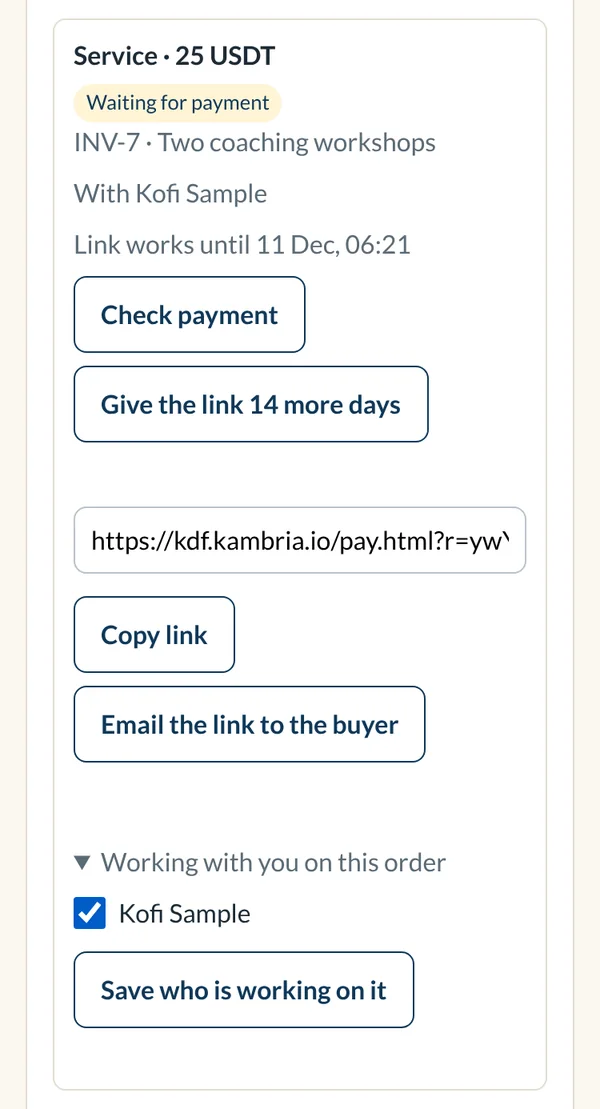
- When you create the payment request, tick the names under Working with you on this order (see Create a payment request).
- To change it later, open Payments and orders and find the order in My orders.
- Tap Working with you on this order under the order to open the list.
- Tick the members who work with you. Untick anyone who doesn't.
- Tap Save who is working on it and confirm with your screen lock. Wait for Done.
- The order now shows With <names>.
Good to know
- You are always on your own orders. You don't need to tick yourself.
- The people you add see the order in their My orders too. They can tap Check payment, but only you and the Organizer can change the people, give the link more days or mark it delivered.
- The Order Handler share of the order is split equally between you and the people on it (see How your Order Handler share works).
- Only people who are still approved members when the revenue is shared get a part.
- Direct revenue: the Organizer can tick Direct revenue for the DAO (no Order Handler). Such orders have no handlers.
If something goes wrong
- The network refused it. Is everyone on the order an approved member? – someone is not approved. Untick them, or ask the Organizer to approve them first.
- You don't see Working with you on this order under an order – the order is done, it is direct revenue, or you didn't make it.
- A member you want is not in the list – they have no account yet or are not approved. Ask them to set up My account and ask the Organizer to approve them.
- That didn’t work. Please try again. – try again in a moment.