
Task approvers
Approve or send back a task list
Updated 26 Nov 2026
This guide helps task approvers check a list of paid tasks, so people are paid only for real work.
Before you start
- Your main account on My account has the task approver role.
- An Operator has sent a list. You get an email when a list waits for you, unless you turned it off.
Steps
- Open the ☰ menu and choose Paid tasks (Task approver group).
- Under Lists, find the list with Waiting for approval.
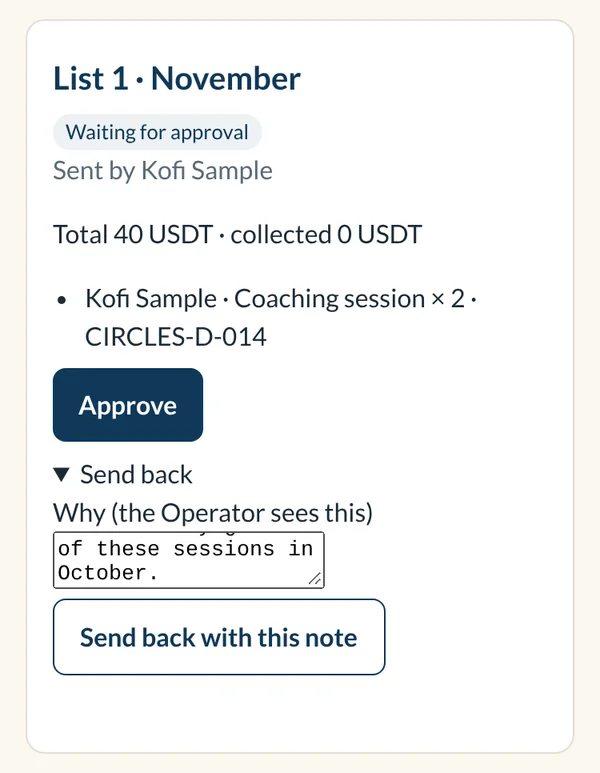
- Read the list: who did which task, how many, the deliverable, and Total.
- Check the Budget card at the top. Available must be at least the list’s total.
- If the list is right, click Approve and confirm with your screen lock. You see Done. and the list shows Approved.
- If something is wrong, open Send back. Write the reason in Why (the Operator sees this). Click Send back with this note and confirm with your screen lock.
Good to know
- If you sent the list yourself, you see You sent this list, so someone else approves it. and no buttons.
- After you approve, people get an email. If automatic payout is on, they are paid without doing anything; if not, they collect on Earnings.
- A sent-back list shows Sent back and your note. The Operator makes a new list.
- The Organizer can still revoke an approved list while nobody has collected from it.
If something goes wrong
- There isn’t enough budget to approve this list yet.: wait until a revenue-sharing cycle adds to the budget, or members add more by a proposal (Add to the paid-task budget).
- Write a short note.: you must give a reason to send a list back.
- The screen lock was cancelled. Please try again.: click again and confirm.
- Too many actions today. Please try again tomorrow.: wait a day.
- That didn’t work. Please try again.: try again; if it keeps failing, tell Kambria Ops.