
Kambria Ops
Look after a DAO's people and settings
Updated 26 Nov 2026
This guide helps Kambria Ops keep a DAO's people and settings right after it is created.
Before you start
- People and roles in the DAO Workbook are the source. The KDF app reads its Roster; you can't add people in the KDF app.
Steps
- To add a person, add them to the DAO's Roster in the DAO Workbook. They can then sign in with that email and set up My account.
- Open the ☰ menu. Under Kambria Ops, tap DAO page and members (or open a DAO from My account).
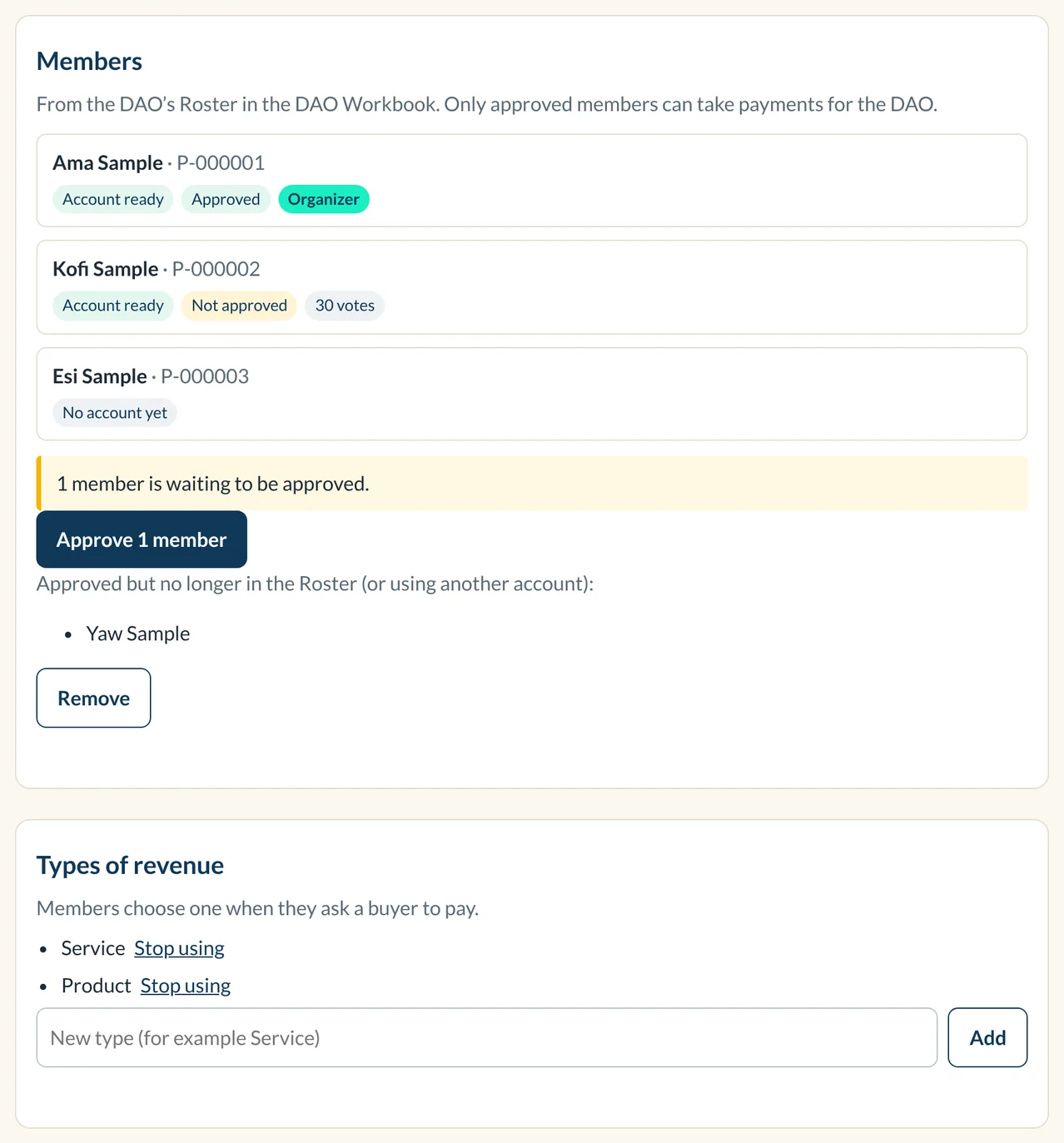
- Check Members: each person shows Account ready or No account yet, Approved or Not approved, their votes and roles.
- Tell the Organizer when someone is waiting: only the Organizer has Approve and Remove.
- Under Types of revenue, add a type with Add, or tap Stop using and Use again.
- Read How this DAO decides for the voting rules and money limits.
- Open Settings → Advanced to see the DAO's contract addresses.
Good to know
- When someone leaves the Roster, they show under Approved but no longer in the Roster (or using another account): until the Organizer removes them.
- Votes (GT), LP and roles change only by a DAO proposal, not here.
- To give someone the Organizer role for types of revenue, task names and the IP draft, set it in the DAO Workbook. The network role comes from the DAO.
- You can also open the DAO's IP declaration page and write the draft, like the Organizer.
If something goes wrong
- This email isn’t registered yet. Ask Kambria Ops to add you in the DAO Workbook. A member sees this at sign-in: add their email in the DAO Workbook.
- You’re signed in, but Kambria Ops hasn’t added you as a person yet. Ask them to add you in the DAO Workbook. Add them as a person.
- Some LP couldn’t be matched to a member. Ask Kambria Ops to check before sharing. The Operator sees this: check whose account holds that LP.