
Members & LP holders
Sign in and set up your account
Updated 26 Nov 2026
This guide helps members sign in for the first time and set up their account, so they can vote, get paid and approve DAO actions.
Before you start
- Use the same email that Kambria Ops added for you in the DAO Workbook. There is no password.
- Use an up-to-date Chrome, Safari or Edge on a phone or computer that has a screen lock (fingerprint, face or PIN).
- Have a pen and paper ready for your 12 recovery words.
Steps
- Open the menu ☰ and tap Sign in. Type your email under Email and tap Email me a sign-in link.
- A quick "are you a person?" check runs. It usually passes by itself; sometimes it asks you to tap a box.
- A message asks you to check your email. Open the email and tap the link. It can take a minute to arrive.
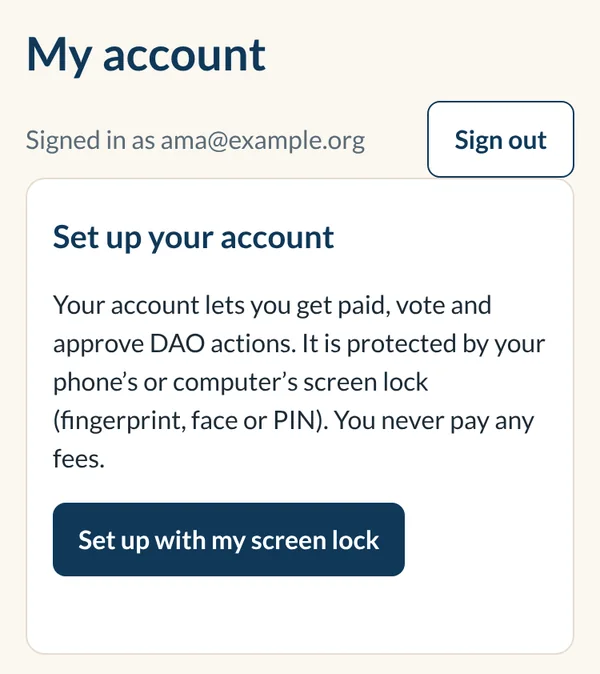
- You are back on My account. In Set up your account, tap Set up with my screen lock.
- Your phone or computer asks to save a passkey for Kambria DAOs. Save it on this device or in your Google or Apple account, then confirm with your screen lock.
- The app shows Write down your 12 recovery words. Write all 12 words on paper, in order. Tick I wrote down my 12 words and tap Next.
- In Check your words, type the words it asks for (for example Word #3) from your paper and tap Done.
- You see Your account is ready and your Member ID. Your DAOs are listed under Your DAOs.
Good to know
- Kambria pays all network fees for you.
- Your fingerprint or face never leaves your device. Kambria cannot open your recovery words.
- Never share your 12 words. Anyone with them controls your account, and Kambria will never ask for them.
If something goes wrong
- This email isn’t registered yet. Ask Kambria Ops to add you in the DAO Workbook. Use the email Kambria Ops added, or ask them to add you.
- You’re signed in, but Kambria Ops hasn’t added you as a person yet. Ask Kambria Ops to add you in the DAO Workbook.
- Please wait … seconds before asking for another link. or Too many sign-in emails were asked for. Wait, then try again.
- We couldn’t check that you’re a person. Please try again. Reload the page and try again. If it keeps happening, send Kambria Ops a screenshot (the code helps them).
- This browser can’t protect your account with a screen lock. Open the page in an up-to-date Chrome, Safari or Edge.
- The passkey was saved somewhere that can’t lock your account (for example LastPass). Try again and save it on this device or in your Google or Apple account.
- One or more words don’t match. Check your paper, or tap Show the words again.